Labels
All releases must belong to a Label. It is possible to have catalogs for multiple labels managed under a single account.
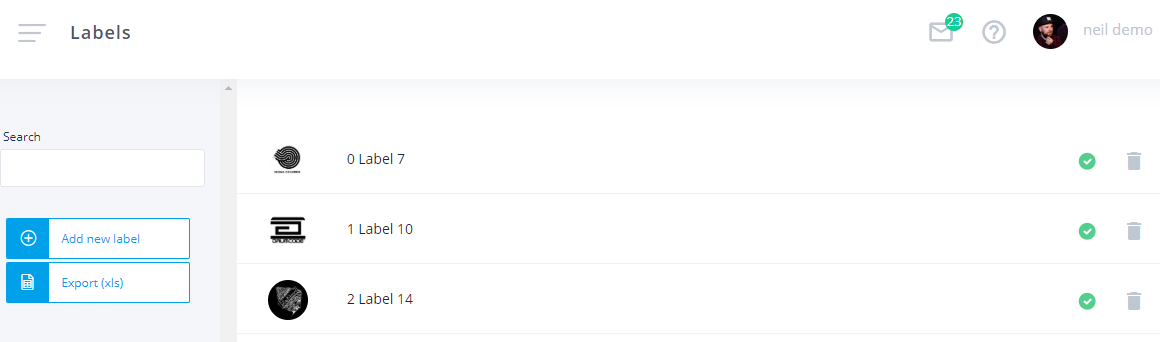
You can use the Add new label button to create a new label, or click on an existing label in the list to edit it's details. Please ensure that all labels transferred to your account are also added as a new label.
Every release in your beatport.ampsuite account must be attached to a label. For Beatport, all releases must be linked to a label profile, which can only be linked to one distributor at a time:
- NEW LABELS: If your label is brand new you will need to set the label profile up for you before your releases can go live.
- EXISTING LABELS: If your label is already live on the Beatport store, please request a transfer to the Beatport Submissions team, and then once approved, please add this imprint also as a new label on your account. Please ensure you write the label name exactly as it appears on the Beatport store and under your account, otherwise it won't map correctly.
Use this option to define any sub-labels you might have for different types of products.
- Label Name: The name for this Label project.
- Account: This option is only visible if your system has multiple label logins. You must select which login account the label sits under.
- Email: The registered email for this label, required if you use label level accounting, and also displayed in things like promos.
- Website: Primary website address for this label.
- Genre 1 & 2: Select the two main recording genres for this label.
- Image: Upload a logo for this Label - this is required for some stores such as Beatport before the label can be setup.
Click the Update Label button at the bottom of the screen to save any changes you have made.